Log in to Panopto
Go to UiO’s Panopto page and select “Log in to Panopto”.
Panopto: Recording, uploading and playing teaching videos – University of Oslo
Create a webcast
Select “Create” and choose “Webcast” from the drop-down menu.

Name the webcast
- Give the webcast a name and description, and make sure it is saved in the correct folder.
- For teaching videos, see the webcast guide for teaching videos linked above.
- Select “Create”.

Change the sharing settings
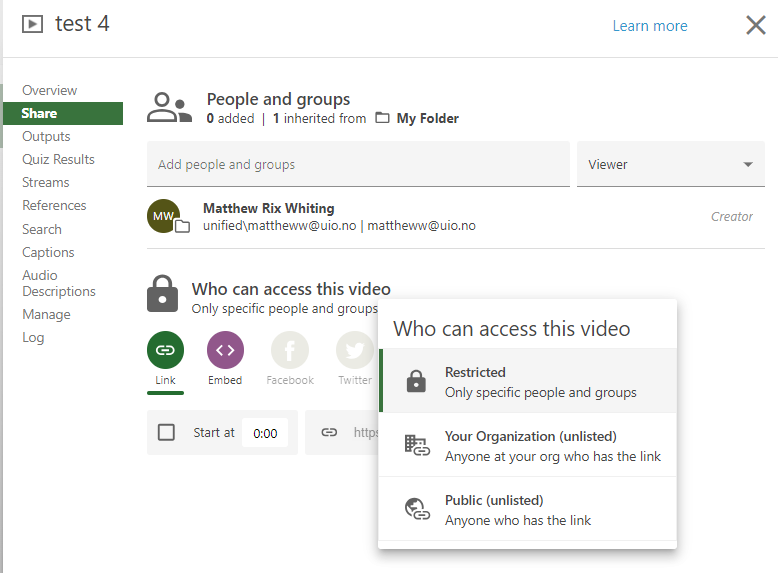
By default, access to the webcast is restricted. Select “Share” and change the access setting to “Your organization” or “Public”, depending on who should be able to view the webcast.
Copy the webcast link
- You will now see an overview of the webcast you created.
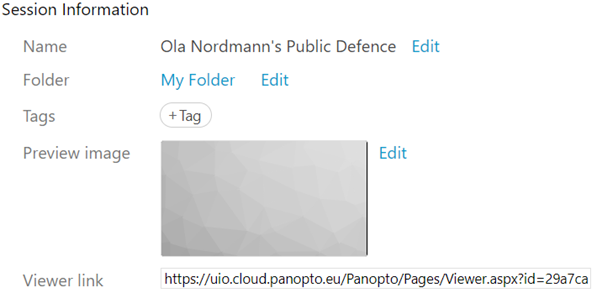
- Copy the “Viewer” link and share it on websites, by email or through other communication channels.
Add a preview image
You can upload a preview image. This image is shown to viewers before the webcast starts.

Webcast recording
A webcast is also a regular Panopto recording that can be published after the event.
The recording should be captioned before publication. Live captions are not available.
Start the webcast
Log in to the computer in the lecture hall well before the event starts. Allow up to 30 minutes for preparation.
Open the Panopto application and log in as the user who created the webcast, or as a user the webcast has been shared with.
On the right side of the Panopto window, select “Join Session”. Then select the correct scheduled webcast.
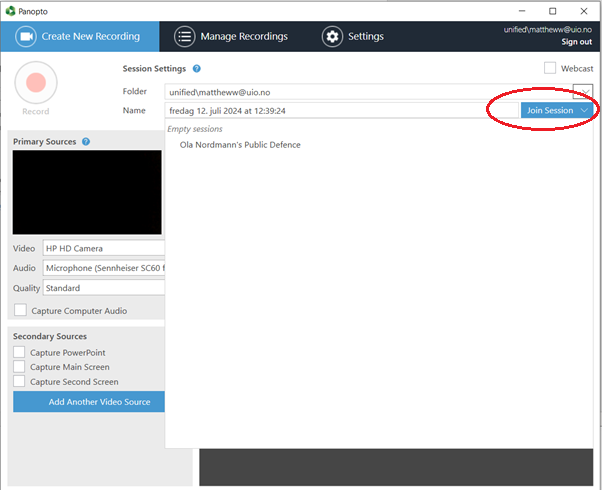
Check that cameras, microphones and presentations are connected correctly in Panopto.
Then select the record button to start the webcast.
Bonus: Share ownership of a webcast
If the owner of the webcast is not present, the webcast cannot be started. You can therefore share ownership so that another user can start the webcast.
Step 1
All Panopto users have their own folder (“My Folder”). By default, new Panopto recordings are saved in this folder.
To give others access to the webcast, you must share the folder where the webcast was created. Create a new folder in “My Folder” and give your colleagues access to it.
Select “Add folder” and give the folder a name, for example “webcasts”.
Step 2
Open the folder you created, select the three dots in the top-right corner and choose “Share”.
Next to “Inherited from My Folder”, select “Change” and then choose “Stop inheriting”.
Step 3
Enter the name or username of the colleague you want to give access to.
The user will only appear if they have logged in to Panopto at least once before.
Select the user and click “Save”. Your colleague now has access to the webcast folder.
Bonus: Open a webcast shared with you
1. Open Panopto
The person who created the webcast must first share the folder with you.
Then open the Panopto application on your computer.
2. Open Folder
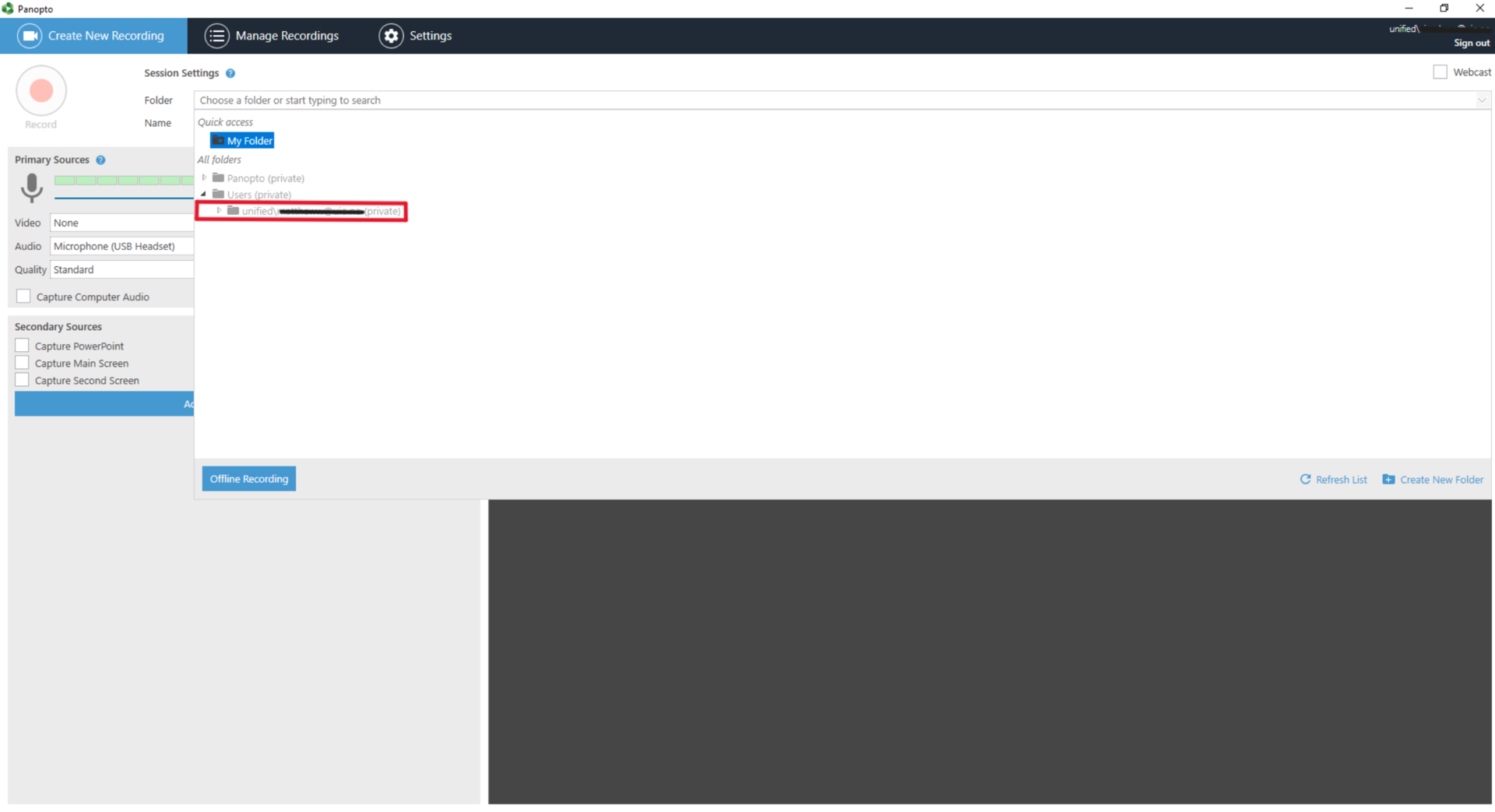
Select “Folder” at the top of the Panopto window. Here, you will see the categories “Quick Access” and “All folders”.

3. Go to Users Private
Under “All folders”, select the arrow on the left or double-click the “Users Private” folder.

4. Find the folder of the person who shared it
Double-click the folder belonging to the person who shared the webcast. The folder will have a name similar to “unified\username@uio.no (private)”.
5. Find the shared folder
The shared folder will be visible and highlighted in the list.

6. Open the folder
Double-click the folder. The folder name will now be shown in the “Folder” field.

7. Join the webcast
Select “Join Session” in the top-right corner and choose the webcast shared with you.

When you can see the correct folder and webcast name, you are ready to start the webcast.
